Your Computer as a VPN Server

A personal server doesn't have to be rented in the cloud — it can be the Mac or Windows computer you already have at home. Open the app menu (☰) and choose Personal Server Mode — see the steps below; no technical knowledge needed.

Who Is It For?

1

Share Your Open Internet

You live where the internet is open and want to give others a way through it — your family, your friends, or simply anyone who needs it. Who can use your server is your choice, changed with one click.

Best for: helping people in a censored country through your home connection.

2

Reach Your Home Network From Anywhere

Connect safely to the devices on your home network — a file server, a printer, cameras — from wherever you are. This is a separate setting: your server can let people out to the internet without letting them into your home network, and that is how it starts.

Best for: getting to your own things at home while you travel.
What You Need

  • A computer that stays on. The server works only while the computer is running and awake — set it not to sleep.
  • A steady address on your home network. It is best if the computer's local address doesn't change; on most home networks it doesn't.
  • Server or VPN, not both. While the computer is serving, it can't connect to P4PN as a VPN itself. It is one or the other.

How to Start

  1. Open the P4PN app on your Mac or Windows computer and log in.
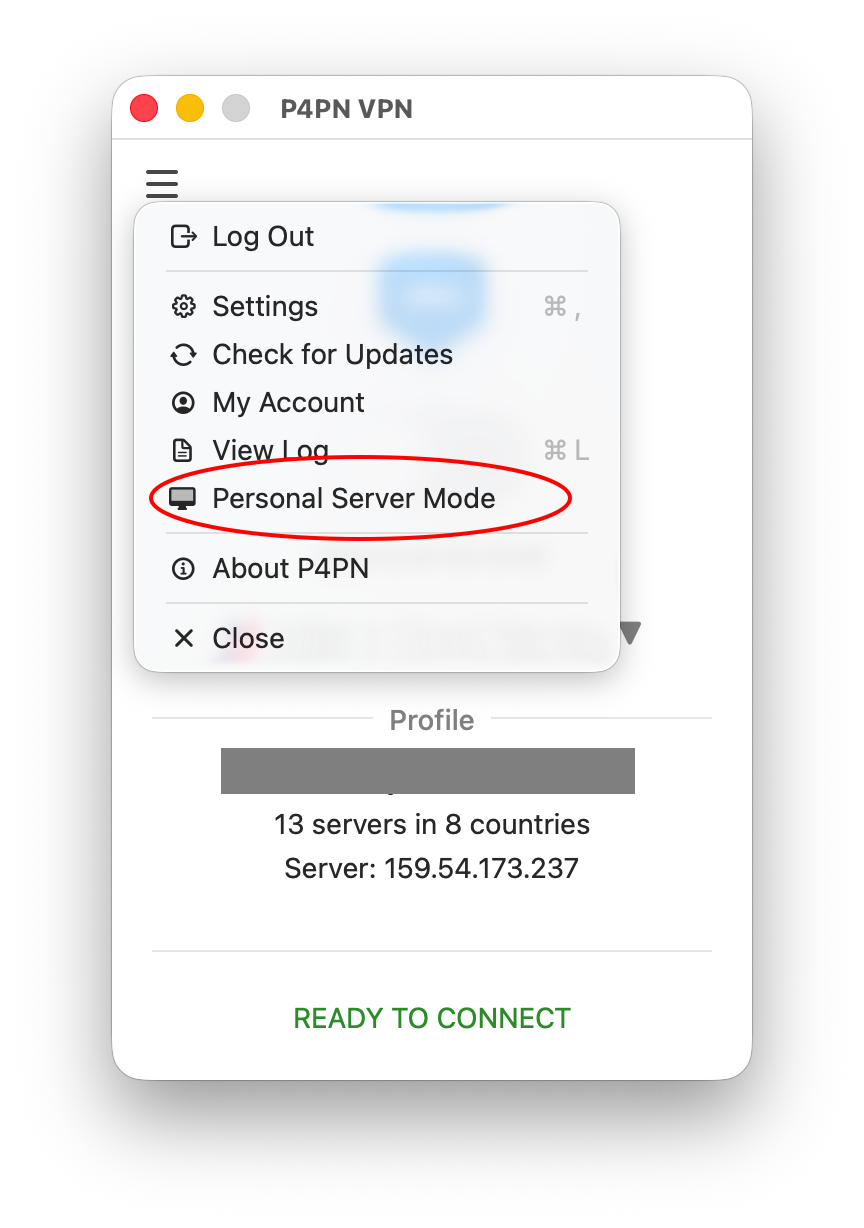
  2. Click the menu button (☰) in the top-left corner and choose Personal Server Mode.
P4PN menu with Personal Server Mode
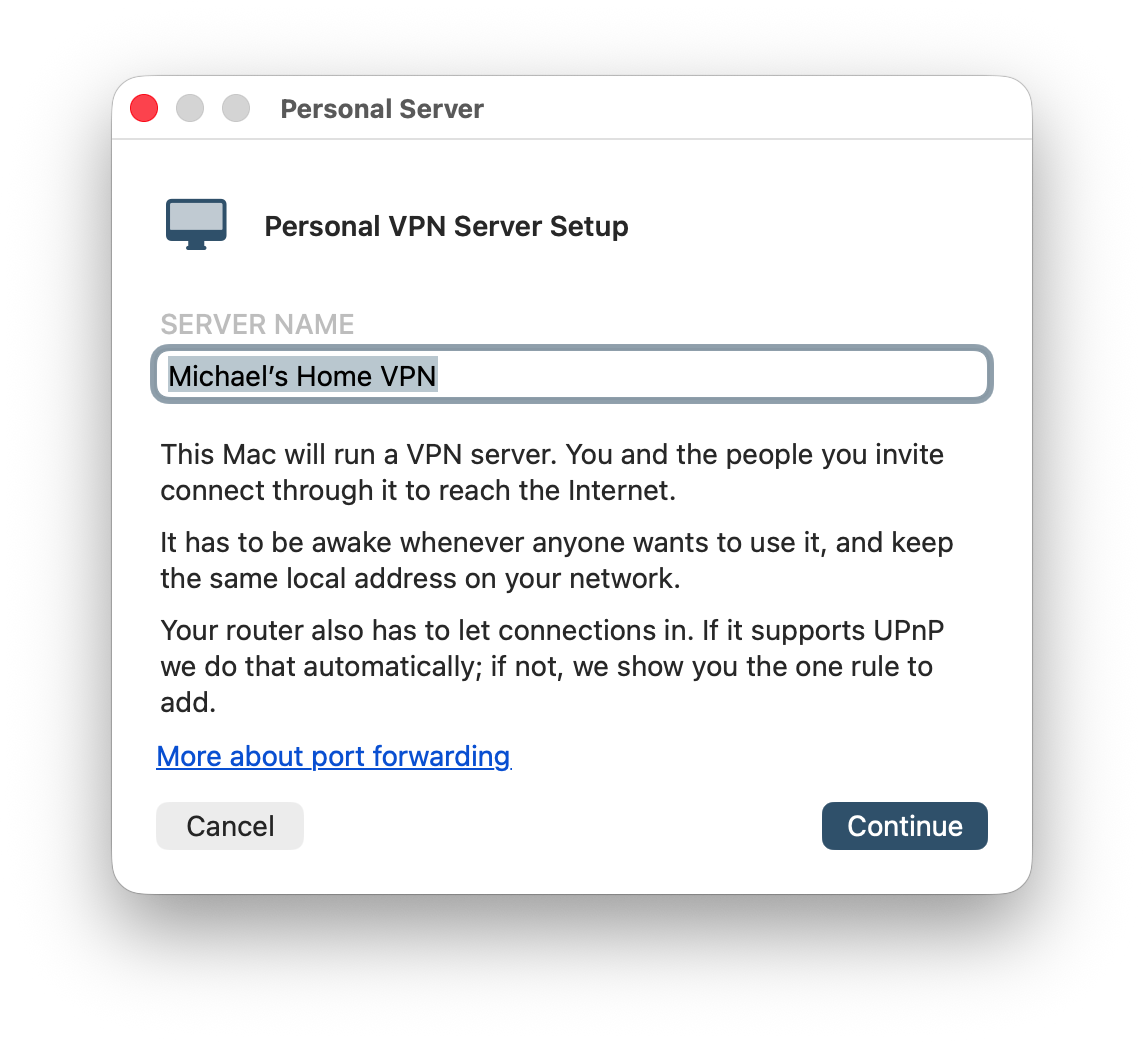
  1. Give your server a name and click Continue. The app walks you through the rest, including your router if it needs a rule.
Personal VPN Server Setup window
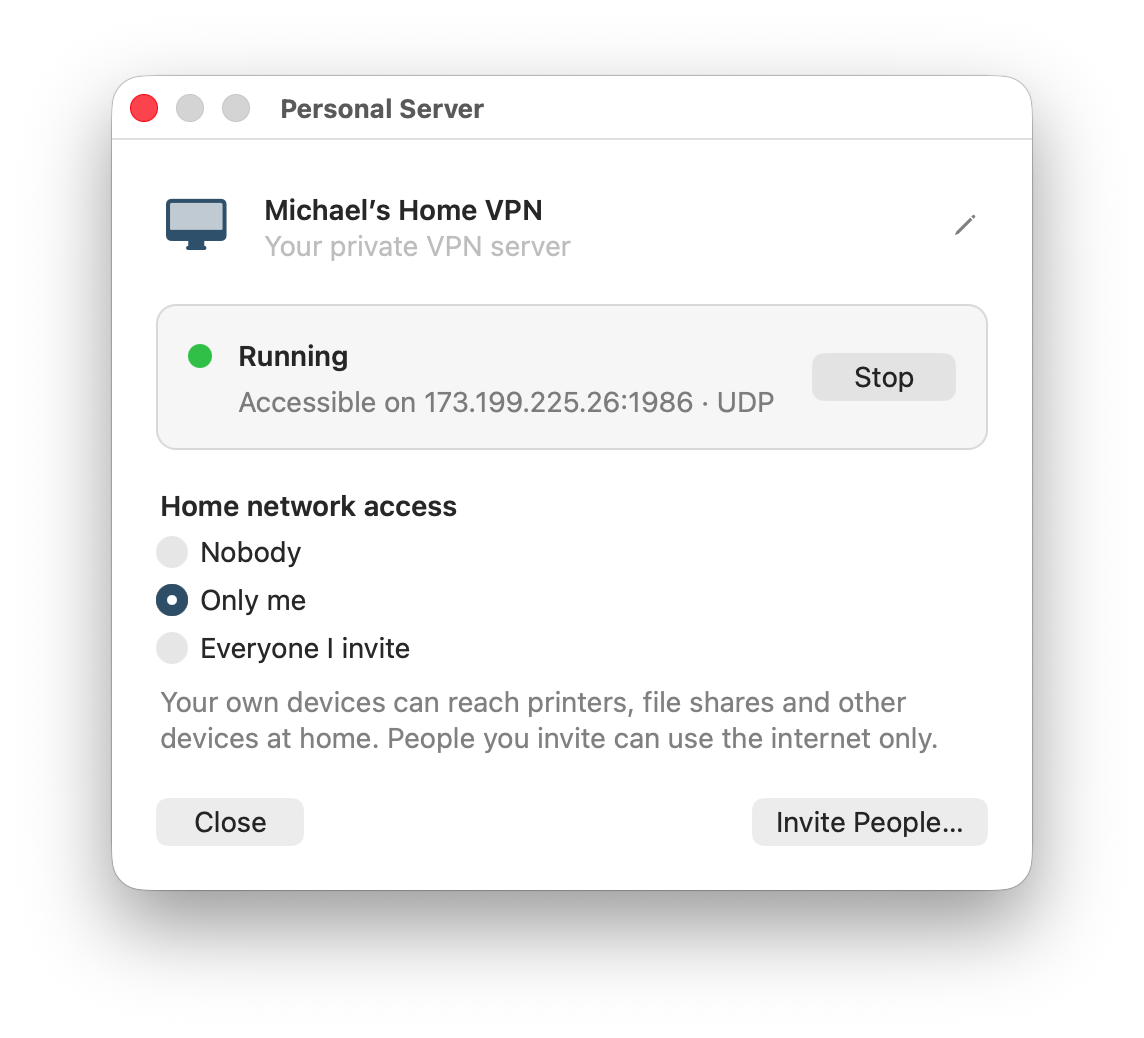
  1. Your server is running. The window shows its status and address, with a Stop button. Under Home network access choose who may also reach the devices on your home network — nobody, only you, or everyone you invite. Click Invite People… to share the server.
Personal Server window with the server running

Once it is running, the server shows up in your server list automatically. Only you and the people you invite see it. To use the VPN on this computer again, choose VPN Client Mode in the same menu.

Please give it a try and tell us how it went.

Coming Soon

A home server for Linux and Raspberry Pi — aimed at more technical users.